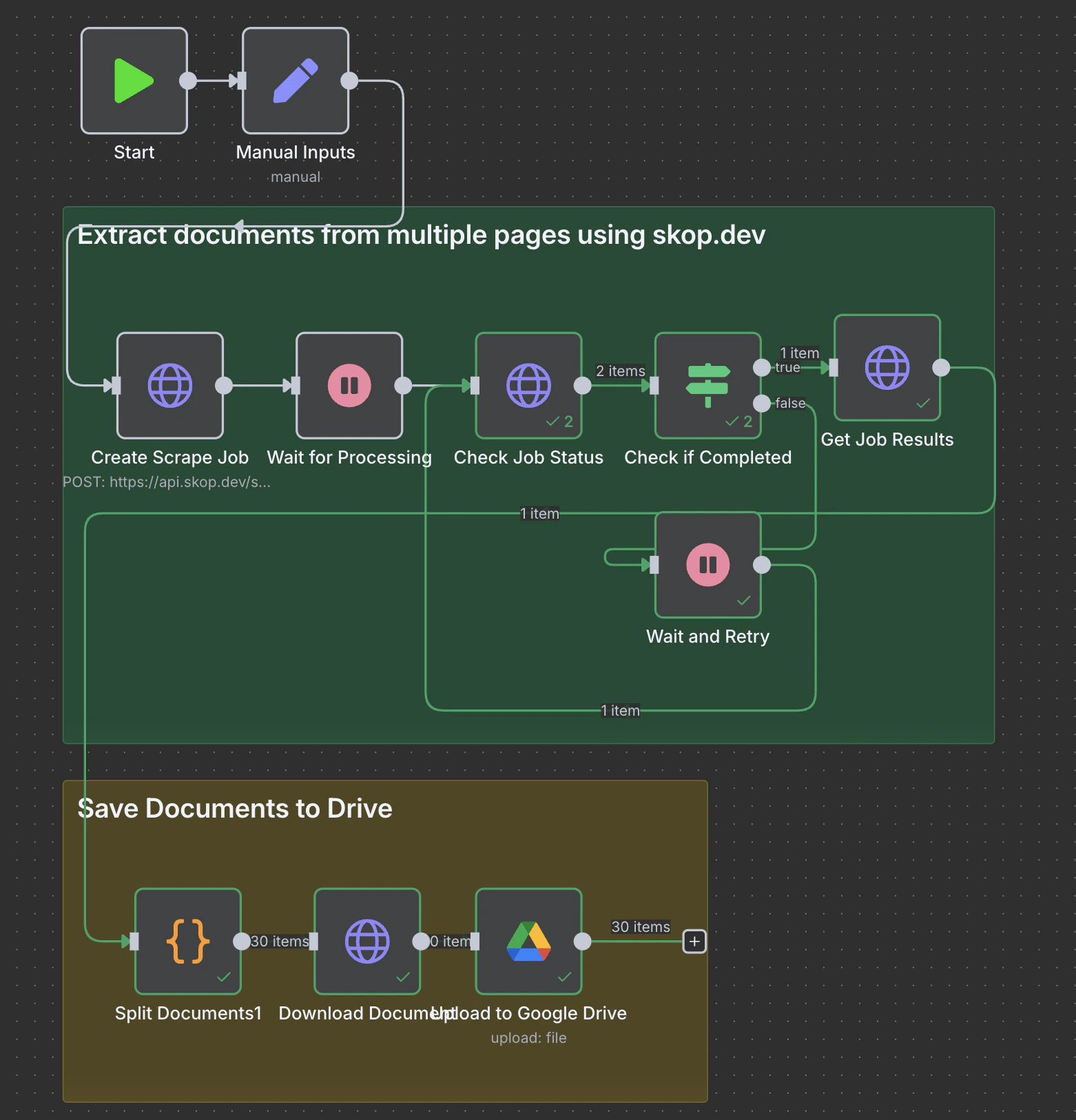
{
    "name": "My workflow",
    "nodes": [
      {
        "parameters": {},
        "id": "aeb4f37b-fd11-46bc-93e3-c2fbc57dea3d",
        "name": "Start",
        "type": "n8n-nodes-base.start",
        "typeVersion": 1,
        "position": [
          -1408,
          304
        ]
      },
      {
        "parameters": {
          "fields": {
            "values": [
              {
                "name": "Prompt"
              },
              {
                "name": "Website URL"
              },
              {
                "name": "API Key"
              },
              {
                "name": "Single-page",
                "type": "booleanValue",
                "booleanValue": "false"
              }
            ]
          },
          "options": {}
        },
        "id": "e5e03541-7475-4da9-acd6-54bed0ae6846",
        "name": "Manual Inputs",
        "type": "n8n-nodes-base.set",
        "typeVersion": 3.2,
        "position": [
          -1264,
          304
        ]
      },
      {
        "parameters": {
          "method": "POST",
          "url": "https://api.skop.dev/scrape/",
          "sendHeaders": true,
          "headerParameters": {
            "parameters": [
              {
                "name": "Authorization",
                "value": "=Bearer {{ $json['API Key'] }}"
              },
              {
                "name": "Content-Type",
                "value": "application/json"
              }
            ]
          },
          "sendBody": true,
          "bodyParameters": {
            "parameters": [
              {
                "name": "website",
                "value": "={{ $json['Website URL'] }}"
              },
              {
                "name": "prompt",
                "value": "={{ $json.Prompt }}"
              },
              {
                "name": "parameters",
                "value": "={{ { \"single_page\": $json[\"Single-page\"] } }}"
              }
            ]
          },
          "options": {}
        },
        "id": "46a590b4-f96d-4073-9c55-9d3f6896fe69",
        "name": "Create Scrape Job",
        "type": "n8n-nodes-base.httpRequest",
        "typeVersion": 4.1,
        "position": [
          -1088,
          320
        ]
      },
      {
        "parameters": {
          "amount": 2,
          "unit": "minutes"
        },
        "id": "67443437-0f60-488f-be38-b2ddd7cac960",
        "name": "Wait for Processing",
        "type": "n8n-nodes-base.wait",
        "typeVersion": 1,
        "position": [
          -928,
          320
        ]
      },
      {
        "parameters": {
          "url": "=https://api.skop.dev/scrape/status/{{ $json.job_id }}",
          "sendHeaders": true,
          "headerParameters": {
            "parameters": [
              {
                "name": "Authorization",
                "value": "=Bearer {{ $('Manual Inputs').item.json['API Key'] }}"
              }
            ]
          },
          "options": {}
        },
        "id": "b411c7e4-2777-43e6-82ca-6b37f81dd623",
        "name": "Check Job Status",
        "type": "n8n-nodes-base.httpRequest",
        "typeVersion": 4.1,
        "position": [
          -768,
          320
        ]
      },
      {
        "parameters": {
          "conditions": {
            "string": [
              {
                "value1": "={{ $json.status }}",
                "value2": "completed"
              }
            ]
          }
        },
        "id": "bcdcedb3-dbaa-4640-b3e1-d0c1ab579b0a",
        "name": "Check if Completed",
        "type": "n8n-nodes-base.if",
        "typeVersion": 1,
        "position": [
          -608,
          320
        ]
      },
      {
        "parameters": {
          "url": "=https://api.skop.dev/scrape/results/{{ $json.job_id }}",
          "sendHeaders": true,
          "headerParameters": {
            "parameters": [
              {
                "name": "Authorization",
                "value": "=Bearer {{ $('Manual Inputs').item.json['API Key'] }}"
              }
            ]
          },
          "options": {}
        },
        "id": "6e7ec0dd-e66e-4373-adbf-3730ccde215a",
        "name": "Get Job Results",
        "type": "n8n-nodes-base.httpRequest",
        "typeVersion": 4.1,
        "position": [
          -448,
          304
        ]
      },
      {
        "parameters": {
          "name": "={{ $json.name }}",
          "driveId": {
            "__rl": true,
            "mode": "list",
            "value": "My Drive"
          },
          "folderId": {
            "__rl": true,
            "value": "YOUR_FOLDER_ID_HERE",
            "mode": "list",
            "cachedResultName": "Your Target Folder",
            "cachedResultUrl": "https://drive.google.com/drive/folders/YOUR_FOLDER_ID_HERE"
          },
          "options": {}
        },
        "id": "a6f83cba-dd55-4e92-8aee-0b08d869c087",
        "name": "Upload to Google Drive",
        "type": "n8n-nodes-base.googleDrive",
        "typeVersion": 3,
        "position": [
          -768,
          816
        ],
        "credentials": {
          "googleDriveOAuth2Api": {
            "id": "YOUR_GOOGLE_DRIVE_CREDENTIALS",
            "name": "Google Drive account"
          }
        }
      },
      {
        "parameters": {
          "amount": 10,
          "unit": "seconds"
        },
        "id": "7f31305d-9f00-4ccb-b037-fdc5b0de9ca0",
        "name": "Wait and Retry",
        "type": "n8n-nodes-base.wait",
        "typeVersion": 1,
        "position": [
          -608,
          480
        ]
      },
      {
        "parameters": {
          "content": "## Extract documents from multiple pages using skop.dev",
          "height": 480,
          "width": 832,
          "color": 4
        },
        "type": "n8n-nodes-base.stickyNote",
        "position": [
          -1136,
          208
        ],
        "typeVersion": 1,
        "id": "3d5d121b-5643-4140-a880-e3b2018f0ae5",
        "name": "Sticky Note"
      },
      {
        "parameters": {
          "jsCode": "// Extract documents array from job results\nconst jobResults = $input.first().json;\n\nif (!jobResults.documents || !Array.isArray(jobResults.documents)) {\n  return [{\n    json: {\n      error: 'No documents found in results',\n      totalDocuments: 0,\n      documents: []\n    }\n  }];\n}\n\n// Return each document as a separate item for processing\nconst outputItems = jobResults.documents.map((doc, index) => ({\n  json: {\n    ...doc,\n    documentIndex: index + 1,\n    totalDocuments: jobResults.documents.length,\n    jobId: jobResults.job_id\n  }\n}));\n\nreturn outputItems;"
        },
        "id": "57c9bc5f-b650-42d3-9340-77a2307be6f9",
        "name": "Split Documents",
        "type": "n8n-nodes-base.code",
        "typeVersion": 2,
        "position": [
          -1072,
          816
        ]
      },
      {
        "parameters": {
          "url": "={{ $json.url }}",
          "sendHeaders": true,
          "headerParameters": {
            "parameters": [
              {
                "name": "Accept",
                "value": "application/pdf,application/octet-stream,*/*"
              },
              {
                "name": "Accept-Language",
                "value": "en-US,en;q=0.9"
              },
              {
                "name": "Cache-Control",
                "value": "no-cache"
              },
              {
                "name": "Referer",
                "value": "https://www.google.com/"
              },
              {
                "name": "User-Agent",
                "value": "Mozilla/5.0 (Windows NT 10.0; Win64; x64) AppleWebKit/537.36 (KHTML, like Gecko) Chrome/120.0.0.0 Safari/537.36"
              }
            ]
          },
          "options": {
            "response": {
              "response": {
                "neverError": true,
                "responseFormat": "file"
              }
            }
          }
        },
        "id": "dfde3a4f-017e-4167-b81f-dd086384b299",
        "name": "Download Document",
        "type": "n8n-nodes-base.httpRequest",
        "typeVersion": 4.1,
        "position": [
          -912,
          816
        ]
      },
      {
        "parameters": {
          "content": "## Save Documents to Drive\n",
          "height": 288,
          "width": 576
        },
        "type": "n8n-nodes-base.stickyNote",
        "position": [
          -1136,
          720
        ],
        "typeVersion": 1,
        "id": "344c5132-0f82-4039-8c0d-de5b02769419",
        "name": "Sticky Note"
      }
    ],
    "pinData": {},
    "connections": {
      "Start": {
        "main": [
          [
            {
              "node": "Manual Inputs",
              "type": "main",
              "index": 0
            }
          ]
        ]
      },
      "Manual Inputs": {
        "main": [
          [
            {
              "node": "Create Scrape Job",
              "type": "main",
              "index": 0
            }
          ]
        ]
      },
      "Create Scrape Job": {
        "main": [
          [
            {
              "node": "Wait for Processing",
              "type": "main",
              "index": 0
            }
          ]
        ]
      },
      "Wait for Processing": {
        "main": [
          [
            {
              "node": "Check Job Status",
              "type": "main",
              "index": 0
            }
          ]
        ]
      },
      "Check Job Status": {
        "main": [
          [
            {
              "node": "Check if Completed",
              "type": "main",
              "index": 0
            }
          ]
        ]
      },
      "Check if Completed": {
        "main": [
          [
            {
              "node": "Get Job Results",
              "type": "main",
              "index": 0
            }
          ],
          [
            {
              "node": "Wait and Retry",
              "type": "main",
              "index": 0
            }
          ]
        ]
      },
      "Get Job Results": {
        "main": [
          [
            {
              "node": "Split Documents",
              "type": "main",
              "index": 0
            }
          ]
        ]
      },
      "Upload to Google Drive": {
        "main": [
          []
        ]
      },
      "Wait and Retry": {
        "main": [
          [
            {
              "node": "Check Job Status",
              "type": "main",
              "index": 0
            }
          ]
        ]
      },
      "Split Documents": {
        "main": [
          [
            {
              "node": "Download Document",
              "type": "main",
              "index": 0
            }
          ]
        ]
      },
      "Download Document": {
        "main": [
          [
            {
              "node": "Upload to Google Drive",
              "type": "main",
              "index": 0
            }
          ]
        ]
      }
    },
    "active": false,
    "settings": {
      "executionOrder": "v1"
    },
    "meta": {
      "templateCredsSetupCompleted": true
    },
    "tags": []
  }